




Apple’s FileMaker introduces version 14

By Skeleton Key
· 2,104 views
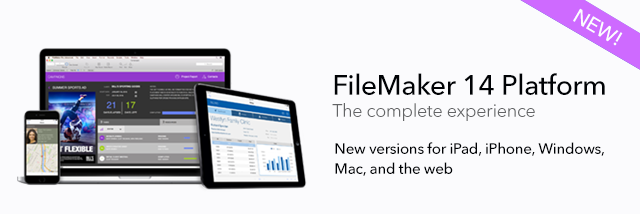
SANTA CLARA, Calif. – May 12, 2015 – FileMaker today announced a new version of its development platform that speeds creation of custom solutions that run on iPad, iPhone, Windows, Mac and the web. FileMaker 14 brings point-and-click simplicity to automating business processes, delivering desktop-style application functionality to mobile web browsers and providing productive, engaging experiences on desktops, iOS devices and mobile web browsers.
The announcement coincides with the 30th anniversary of FileMaker software. FileMaker was the brainchild of a bootstrapped startup founded in Massachusetts by four entrepreneurs intent on creating easy-to-use database software.
"FileMaker 14 is the culmination of 30 years of helping customers exploit the latest platforms – from Mac and Windows then through iOS devices and mobile web browsers today – meeting users’ rising expectations for data accessibility, simplicity and mobility," said Ryan Rosenberg, vice president of marketing and services for FileMaker, Inc. "With FileMaker 14, creating compelling cross-platform solutions and designing for the times is simpler than ever – even if you’ve never developed any solution before."
New features in FileMaker 14
The post Apple’s FileMaker introduces version 14 appeared first on FileMaker Development Company.
Recommended Comments