




FileMaker Pro Support
By eXcelisys
· 250 views
Your FileMaker Solution Has Been Running for Years. Time for a Check-Up!
How to Protect, Maintain and Future-Proof Your Database Investment
We launch custom Claris FileMaker solutions all the time and enjoy watching our clients go from glum to giddy once their manual processes are automated, their data is organized into slick layouts, and the whole operation runs smoother thanks to workflows built around the way they actually work.
Then something interesting happens.
The FileMaker solution quietly becomes part of the furniture. It sits in the background doing its job so reliably that nobody thinks about it anymore … until one day they have to.
In reality, your software runs inside a world of shifting operating systems, hardware updates and security threats.
Long-term FileMaker support isn’t just about writing new code to add new features. It’s about protecting your investment and maximizing reliability to ensure your business never hits an operational roadblock.
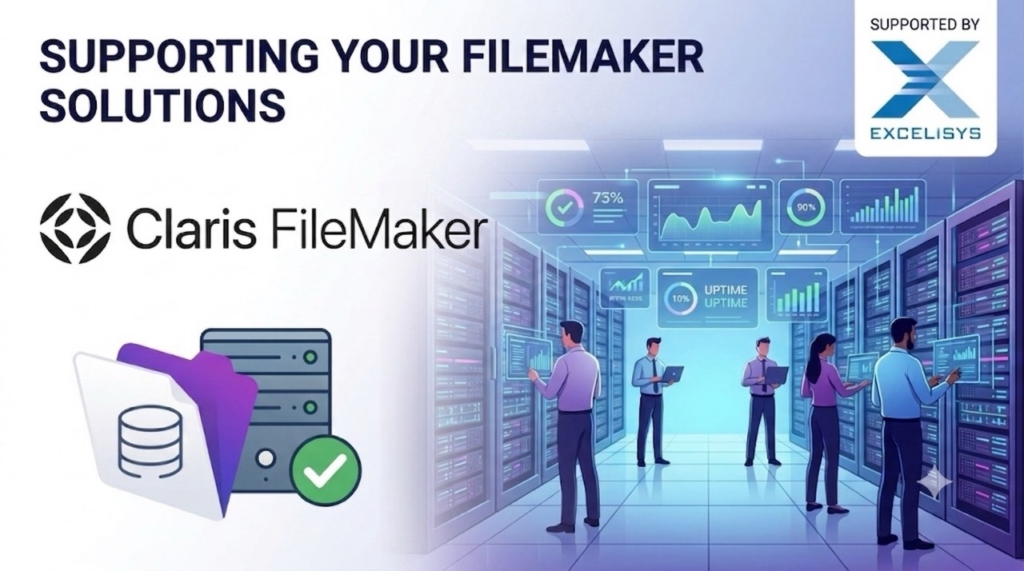
Use this checklist to keep your FileMaker solution healthy, secure and resilient for years to come.
1. Automated Backups: Your FileMaker Safety Net
If your server hardware fails or a user accidentally deletes a critical table, your backup strategy is the only thing standing between a minor inconvenience and a catastrophic business disruption.
- Redundancy: Configure your FileMaker Server to run progressive backups throughout the day to save changes every few minutes, then add in daily and weekly backups. If one backup fails, you have others.
- Offsite Storage: If your server lives on-premise, a fire or local power surge could destroy both your live database and your local backups. Ensure your backup schedules automatically push copies to a secure cloud environment or a separate physical location.
- Trust but Verify: A backup is only good if it actually works. Periodically test downloading a backup file and opening it locally to ensure the data is intact and uncorrupted.
2. Keep Pace with Operating Systems (OS) and Hardware
Operating systems evolve rapidly. Apple and Microsoft roll out major updates every year, and if you update your user workstations or your server OS without checking compatibility, your FileMaker solution can break.
- Stay in the Compatibility Zone: Before clicking “Update” on macOS or Windows, verify that your current version of FileMaker Pro or FileMaker Server eXplicitly supports that new OS version.
- Hardware Maintenance: FileMaker Server is a resource-intensive application. It relies heavily on fast disk read/write speeds. Keep an eye on server storage capacity and drive health. Running out of disk space on a live FileMaker Server can cause immediate database corruption.
3. Proactive Security and Vulnerability Management
Security isn’t a one-and-done task. As new digital threats emerge, your support strategy must adapt to protect sensitive business data.
- SSL Certificates: Never run FileMaker Server on a default, unsecured certificate. A custom SSL certificate ensures that data moving between your server and your team’s laptops or iPads is fully encrypted.
- Patching and Minor Updates: Claris regularly releases minor updates and security patches for FileMaker Server and Pro. Staying up to date on these sub-versions ensures security vulnerabilities are closed.
- Practice Good Account Hygiene: Regularly review user access. When an employee leaves the company, their FileMaker account should be deactivated immediately. Ensure your solution enforces strong password protocols or integrates with your company’s eXisting Single Sign-On (SSO) provider.
- The Infrastructure Reality: You don’t need to be actively building new features to need technical support. Just keeping FileMaker Server running smoothly alongside your company’s network, firewalls and updates requires consistent, specialized attention. (If you want more tips on maintaining your FileMaker Server, check out this tip sheet created by one of our developers).
4. Keep A FileMaker Pit Crew on Standby
The biggest risk to a FileMaker solution isn’t bad software—it’s key person dependency.
If your entire FileMaker infrastructure lives in the head of a single internal employee, your business is vulnerable. If they go on vacation, get sick, or leave the company, you are left without a paddle when a server crash or a network glitch occurs. Long-term support means having a reliable, knowledgeable team backing you up. You need a partner who understands the nuances of FileMaker Server deployment, network optimization, and database architecture, ready to step in the moment you need assistance.

Wanna work with an eXpert? eXcelisys developers are certified in all things FileMaker Pro.
Don’t Go It Alone: Internal Know-How + eXpert Backup
Every great FileMaker setup has a familiar hero behind it: an internal employee who knows the system inside and out. These gems understand the workflows and eXactly how the business uses the database day to day.
That kind of institutional knowledge is incredibly valuable. The challenge is that even the best internal eXpert can’t be everywhere at once. If your internal eXpert is on vacation or leaves the company and there’s a server crash or network glitch, what are you going to do?
That’s where a partnership with a professional FileMaker team (like eXcelisys) makes all the difference. We can tell you which features come with each version update so you know if it will directly improve your database. Not every update is a must-install right away. Sometimes new features meaningfully improve your system. Other times, they’re better left for a later release cycle to avoid unnecessary disruption. An eXperienced team can help you make that call with confidence.
Together, internal knowledge and eXternal eXpertise create a stronger, more resilient team. This is the best of both worlds: one internal person keeping your system running day to day and a dedicated team that can step in when things get complex, urgent, or just too big to tackle alone.
Looking to the Future: Partner with eXcelisys
You don’t have to shoulder the burden of system maintenance, server monitoring, and security patching alone. Whether you need a safety net for day-to-day troubleshooting, assistance migrating your server to a more stable environment, or advice on keeping your systems compliant, eXcelisys is here to act as an eXtension of your team.
Beyond keeping the engine running, we are also here for when your business grows. When you are ready to eXpand your solution’s capabilities, integrate it with modern web APIs, improve its user eXperience, or completely rebuild a legacy system for the modern era, our team of seasoned Claris FileMaker eXperts ensures your software evolves right alongside your business goals.
Don’t wait for a server crash to think about support. Contact eXcelisys today to ensure your FileMaker solutions are secure, optimized and ready for the future.
The post FileMaker Pro Support appeared first on eXcelisys.
Recommended Comments