







Overview
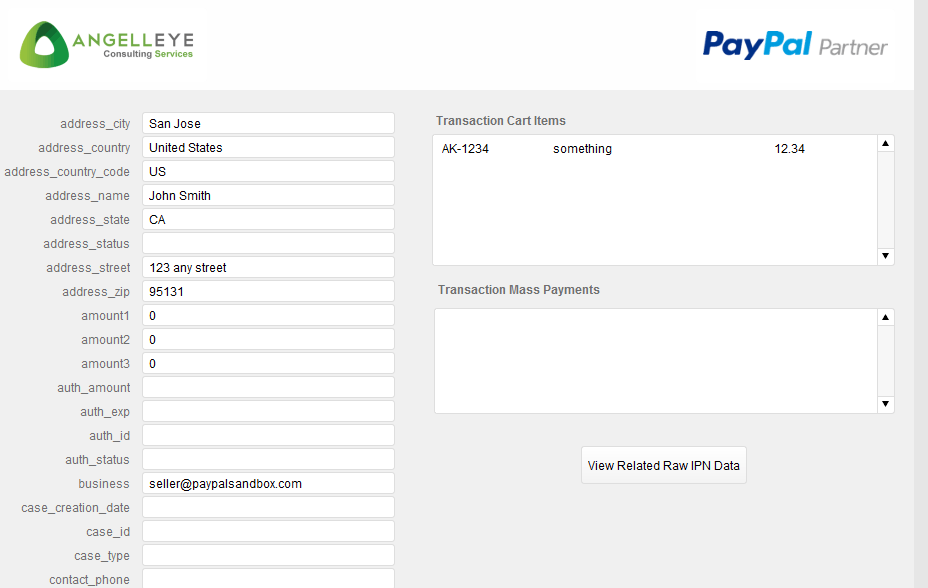
Get data from PayPal transactions pushed into FileMaker automatically, instantly when the transactions occur. No more wasting time with manual data entry from PayPal into FileMaker!
Our FileMaker PayPal IPN solution connects directly to FileMaker Server hosted databases using FileMaker’s PHP API. This provides instant, seamless integration of PayPal IPN into FileMaker.
-
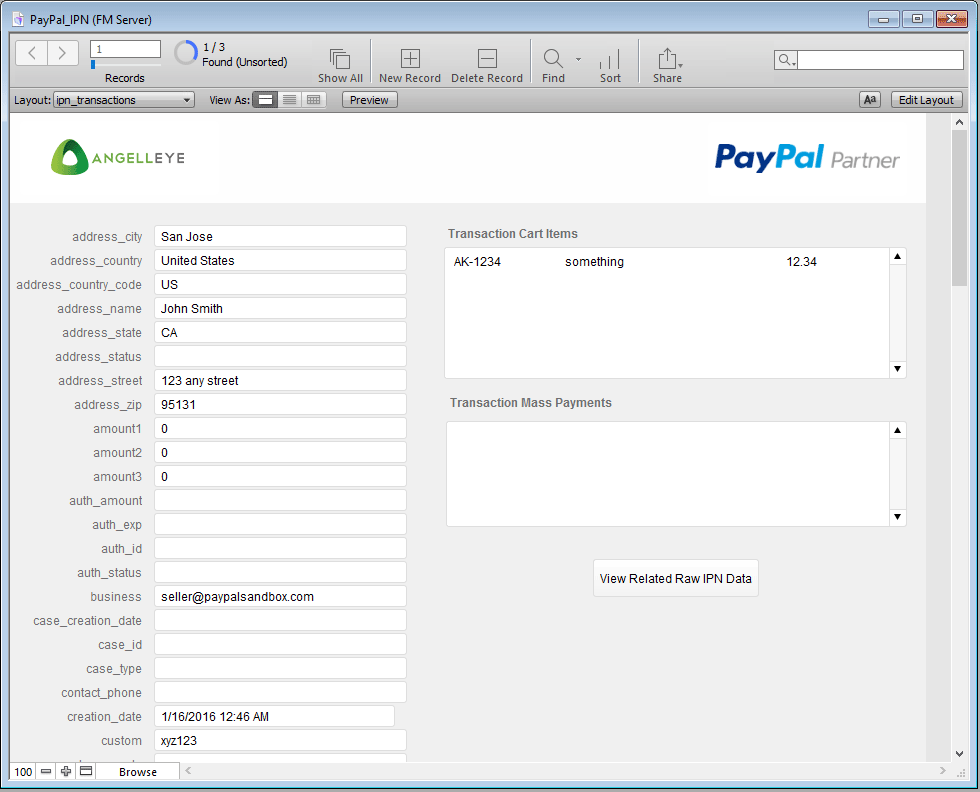
FileMaker PayPal IPN Data Solution File
- A FileMaker database that stores all of the PayPal IPN data.
- This needs to be hosted on a FileMaker Server
-
FileMaker PayPal IPN PHP Solution Files
- A PHP application that processes the PayPal IPN data and updates the FileMaker solution file accordingly.
- This needs to be hosted on a web server with PHP 5.3 or higher installed
What Can I Do With It?
The basic functionality of the solution is to automatically save data about any transaction that hits your PayPal account to your FileMaker system. What this does for you is opens the door to automate tasks that could potentially chewing hours, days, even weeks of time! With a couple of simple table relationships and FileMaker scripts, the possibilities are endless.
Just a Few Examples
- Create new orders in your FileMaker system when payments are received in PayPal.
- Update the PayPal payment status of orders in your FileMaker system.
- Update FileMaker product / order details when an order is refunded.
- Trigger FileMaker scripts based on IPN transaction types or payment status.
- Flag orders where a customer has filed a dispute with PayPal.
The best part is that this all happens automatically, instantly when the transaction hits PayPal!