Jump to content
View in the app

A better way to browse. Learn more.

FMForums.com

A full-screen app on your home screen with push notifications, badges and more.

To install this app on iOS and iPadOS
  1. Tap the Share icon in Safari
  2. Scroll the menu and tap Add to Home Screen.
  3. Tap Add in the top-right corner.
To install this app on Android
  1. Tap the 3-dot menu (⋮) in the top-right corner of the browser.
  2. Tap Add to Home screen or Install app.
  3. Confirm by tapping Install.
  • Entries

    214
  • Comments

    13
  • Views

    136,550

About this blog

FileMaker tips, techniques, and news.

Entries in this blog

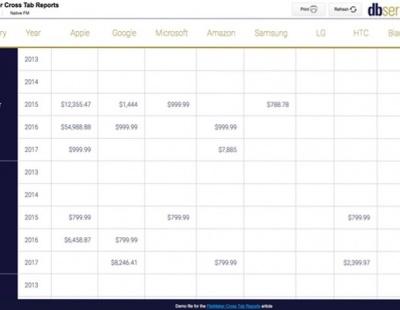
Integrate FileMaker 16 with the leading business intelligence software available, Tableau. Tableau allows you to create advanced charts and reports of your data, and create interactive dashboards that let you see trends and turn data into actionable insights. Free demo file included: https://dbservices.com/articles/filemaker-business-intelligence-using-tableau/ dbservices.com
Many companies use both QuickBooks and FileMaker end up having to do double data entry from one system to the next. In this article, we will demonstrate how you can eliminate the hassle of manually copying the information by integrating your FileMaker solution with QuickBooks online. Includes demo and sample file: https://dbservices.com/articles/filemaker-quickbooks-online-integration/ dbservices.com
Have you ever inherited a system built by someone else, changed a field’s name and everything stopped working? The issue, hardcoded names used in indirection, makes the system fragile. FileMaker provides developers many methods to add flexibility using indirection. However when these instances of indirection are not treated properly they will raise all sorts of problems. In this article you will learn best practices regarding indirection that will help you build a dynamic and robust FileMaker sy
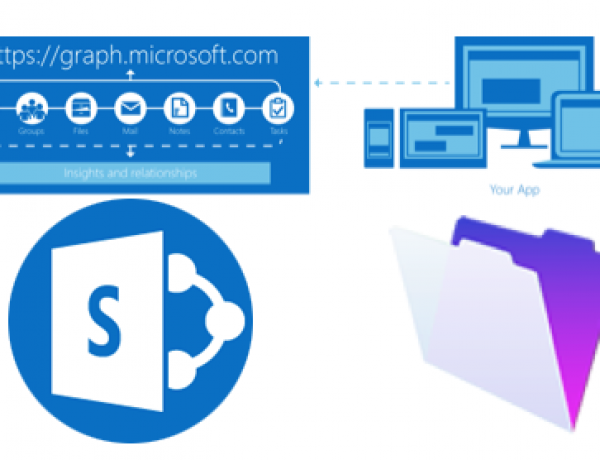
Do you have documents that need to be shared on multiple platforms? Learn how to integrate FileMaker with SharePoint via Microsoft Graph API. Includes a free sample file and demo: https://www.dbservices.com/articles/integrating-filemaker-and-sharepoint-using-microsoft-graph/ www.dbservices.com
With the power of Zapier, different applications can be integrated into your FileMaker solution and overall business with ease. Learn how to integrate Salesforce with FileMaker. Free download included with video example. https://www.dbservices.com/articles/integrating-filemaker-and-salesforce-using-zapier/ dbservices.com
FileMaker 15 provides us with the ability to interact with iBeacon devices using FileMaker Go. This means with some setup we can associate data in our FileMaker solution with physical locations and have our iOS devices access them via the iBeacon technology. Free Sample File included. https://www.dbservices.com/articles/filemaker-beacons/ dbservices.com
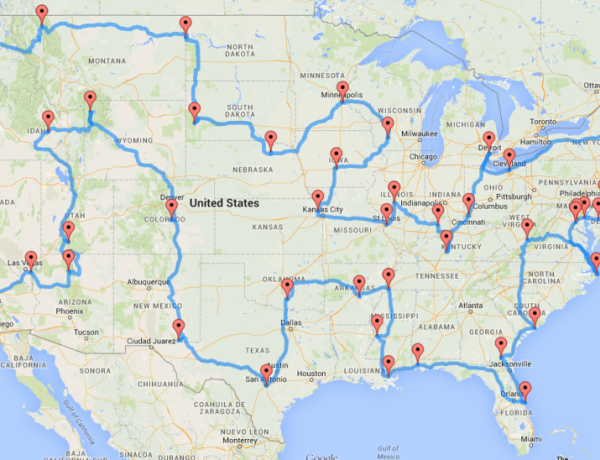
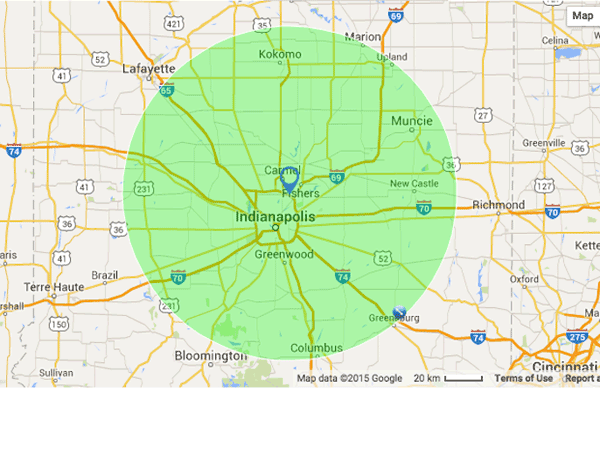
Do you travel a lot for your job and need the best route possible to save time and money? Learn how to connect your FileMaker solution with the Google Maps Directions API for route optimization! Free sample file and video included. https://www.dbservices.com/articles/filemaker-google-route-optimization/ dbservices.com
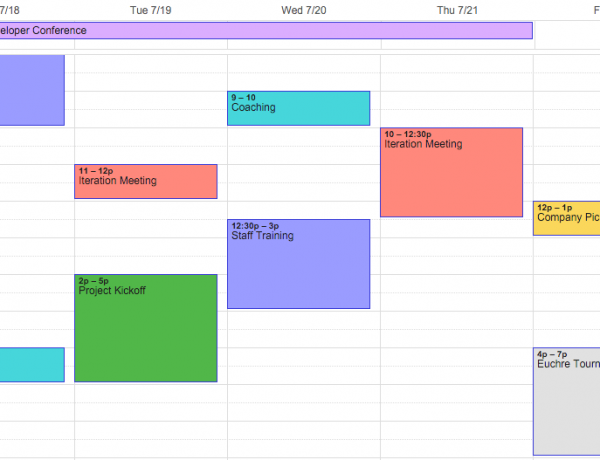
Are you wanting to have a calendar in your FileMaker application, but don't want to build a custom one? Why not use a calendar app already available? Learn how to integrate with Google Calendar! Includes free demo and file. https://www.dbservices.com/articles/filemaker-google-calendar-integration/ dbservices.com
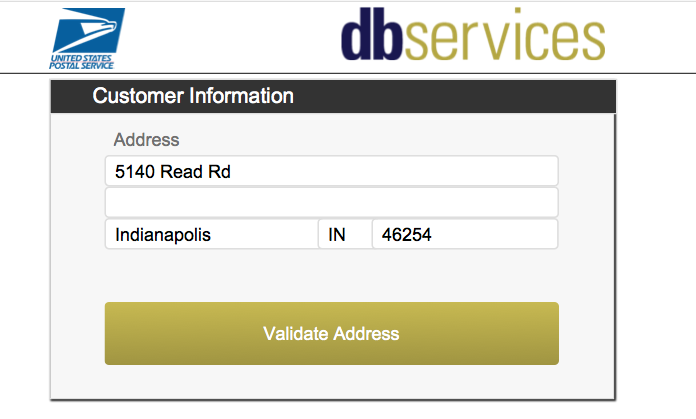
Learn how to easily validate an address using a free web service from USPS. Sign up for a free developer account at USPS and ensure you have valid addresses.  Includes sample file and tutorial video. https://www.dbservices.com/articles/integrate-filemaker-usps-address-validation/ dbservices.com

Important Information

By using this site, you agree to our Terms of Use.

Account

Navigation

Search

Configure browser push notifications

Chrome (Android)
  1. Tap the lock icon next to the address bar.
  2. Tap Permissions → Notifications.
  3. Adjust your preference.
Chrome (Desktop)
  1. Click the padlock icon in the address bar.
  2. Select Site settings.
  3. Find Notifications and adjust your preference.