Jump to content
View in the app

A better way to browse. Learn more.

FMForums.com

A full-screen app on your home screen with push notifications, badges and more.

To install this app on iOS and iPadOS
  1. Tap the Share icon in Safari
  2. Scroll the menu and tap Add to Home Screen.
  3. Tap Add in the top-right corner.
To install this app on Android
  1. Tap the 3-dot menu (⋮) in the top-right corner of the browser.
  2. Tap Add to Home screen or Install app.
  3. Confirm by tapping Install.
  • Entries

    212
  • Comments

    13
  • Views

    133,327

About this blog

FileMaker tips, techniques, and news.

Entries in this blog

FM Quickstart, the premier free ERP app for FileMaker, has been updated for the latest version of FileMaker. Several new features have been added including Leads and Opportunities modules, QuickBooks Online Integration, iPhone functionality, and more. Includes demo videos. Read the full article here. To download FM Quickstart, visit the official FM Quickstart website. 
Formstack takes your FileMaker data collection to the next level! Formstack can automate document creation, collect secure signatures, and drive your data collection with astonishingly customizable forms. Our integration guide includes a video and sample files to get you started! Read the full article and download the sample file here.
If you're new to FileMaker and don't know where to start, you're in luck! We've been working with FileMaker since 2003 on hundreds of projects, and we want to share our expertise with beginners like you. This collection of resources will help you get started building custom FileMaker Apps today. Read the full article here. 
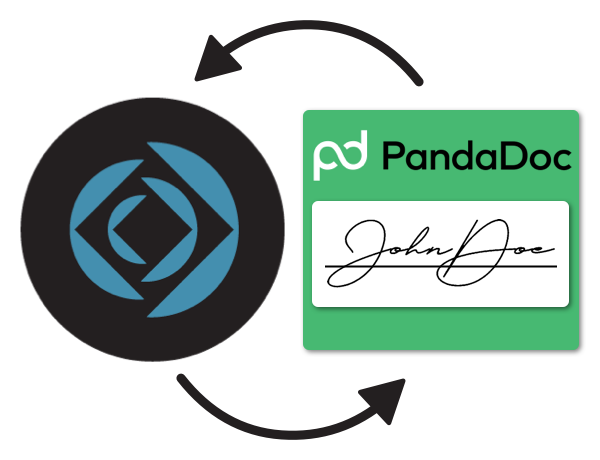
Sometimes you need to send a document to be signed virtually. Integrating PandaDoc with your FileMaker solution makes this an easy task. PandaDoc has a robust API that allows you to create, send, and receive documents digitally using the functionality of your FileMaker system to manage the process. This guide will show you how you can begin sending documents. Includes a video and sample file. Read the full article here. 
Double data entry is often the enemy of companies that use both FileMaker and Sage Intacct. In this article, we will demonstrate how you can eliminate the hassle of manually copying the information by integrating your FileMaker solution with Sage Intacct. Includes video and sample file. Read the full article here. 
With our new free FileMaker add-on, FM Draw, you'll be able to write on images in FileMaker in just a few simple steps. Whether you're looking to make notations to a design or highlight sections of an image, we have you covered! Read the full article and download the add-on here. https://dbservices.com/blog/fm-draw   dbservices.com
Claris’s first of many frequent releases of the FileMaker platform is here as Claris focuses on being agile and low-code moving forward, with new features being released more frequently. In this article we will focus on FileMaker Pro 19.1 and discuss some of our favorite new features, including 9 new add-ons and the new layout design experience preview. https://dbservices.com/blog/claris-filemaker-19-1-overview dbservices.com
FM Quickstart, the premier free CRM app for FileMaker, has been updated for FileMaker 19. Several new features and modules have been added including Task Lists, Calendar, and more. FM Quickstart Implementation Plans have also been added to our services offered in order to assist with setup and customization of FM Quickstart. Learn more about these exciting new features and get started with FM Quickstart here: https://dbservices.com/blog/fm-quickstart-19 dbservices.com
For the second year in a row, DB Services was ranked on Inc. Magazine's list of the 5,000 fastest growing private companies in the U.S. For 2020, DB Services ranked #3,992 out of 5,000 on the list. https://dbservices.com/articles/db-services-ranks-on-inc-5000-for-2020/ dbservices.com
On August 5th, 2020, DB Services was named the Claris Excellence Award FileMaker Growth Partner of the Year for the Americas for 2020.  This is DB Services 4th consecutive year bringing home the award from Claris International, Inc.  The award is presented annually to each region’s Claris partner that achieves the highest revenue and brand growth for Claris. https://dbservices.com/articles/db-services-named-filemaker-partner-of-the-year/ dbservices.com
DB Services is continuing the Surveys for Success program by donating to UNITY Performing Arts Foundation for every survey received. The Surveys for Success program chooses a non-profit organization each quarter, and for each survey received during this time, $10 is donated to the chosen organization. The UNITY Performing Arts Foundation provides award-winning after-school programs to youth in the Fort Wayne, IN area. https://dbservices.com/articles/surveys-for-success-unity/ dbservic
Claris Connect is unique in its Approvals offering. This lets you process approval requests by email, then trigger additional follow up actions from Claris Connect. Here we take a closer look at the Approval features, how easy it is to set up one-click approvals for your business, and show a demo triggering approval requests from FileMaker: https://dbservices.com/articles/claris-connect-and-filemaker-approvals/ dbservices.com
BackBlaze is a large scale cloud storage platform where you can store and retrieve large amounts of data at an affordable rate. BackBlaze's B2 Cloud Storage API allows you to offload large amounts of file data from your FileMaker solution to the cloud, keeping your data size down and providing easy access to your files on the web. This article includes a tutorial video and free sample file: https://dbservices.com/articles/filemaker-backblaze-integration/ dbservices.com
Claris Connect, the no-code platform from Claris International, allows users to rapidly connect multiple cloud services together, including FileMaker and QuickBooks Online. Learn how your organization can eliminate double data entry and reduce user error in a few quick steps! Includes tutorial video and free sample file. dbservices.com

Important Information

By using this site, you agree to our Terms of Use.

Configure browser push notifications

Chrome (Android)
  1. Tap the lock icon next to the address bar.
  2. Tap Permissions → Notifications.
  3. Adjust your preference.
Chrome (Desktop)
  1. Click the padlock icon in the address bar.
  2. Select Site settings.
  3. Find Notifications and adjust your preference.