




Spy App | TopSecret| iPhone | iPad

By Skeleton Key
· 1,314 views
<p><a href="http://www.skeletonkey.com/blog/confidential-for-your-eyes-only"><br /><h1>Confidential! For Your Eyes Only...</h1>
<p></p></a><br />Sometimes as FileMaker developers we have to give back to the kids. Let me give you an example: </p>
<p>My daughter went through a phase where everything "spy" related was very cool. For her 9th birthday party, I dressed up as a CIA agent (suit, sunglasses, earbud com). So what more can a FileMaker developer, with kids interested in spies, do to support their interest...? </p>
<p>Build them an app for sending coded messages of course! (I apologize now to teachers and parents everywhere.  </p>
</p>
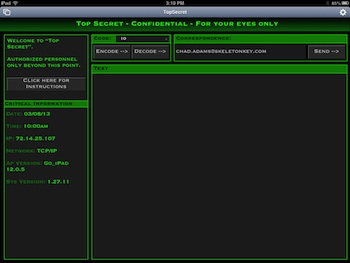
<p><b>TopSecret</b> is a fun little FileMaker Go file that encodes and decodes messages. </p>
<p><a href="http://www.skeletonkey.com/images/Blog/ChadBlogImage1_350x263.jpg" align="right"><img width="400" height="301" src="http://www.skeletonkey.com/images/Blog/ChadBlogImage1_350x263.jpg" /></a><br />There are screens designed specifically for iPhone, iPad and the Desktop. If you'd like to download the example file, please enter your email address in the box provided on the left side of this blog.</p>
<p><a href="http://www.skeletonkey.com/blog/confidential-for-your-eyes-only" target="_blank">read more</a></p>
Recommended Comments