Jump to content
View in the app

A better way to browse. Learn more.

FMForums.com

A full-screen app on your home screen with push notifications, badges and more.

To install this app on iOS and iPadOS
  1. Tap the Share icon in Safari
  2. Scroll the menu and tap Add to Home Screen.
  3. Tap Add in the top-right corner.
To install this app on Android
  1. Tap the 3-dot menu (⋮) in the top-right corner of the browser.
  2. Tap Add to Home screen or Install app.
  3. Confirm by tapping Install.
  • Entries

    20
  • Comments

    2
  • Views

    28,021

About this blog

Excerpts from my articles published on the 24U's News page which I find worth sharing with the FMForums community

Entries in this blog

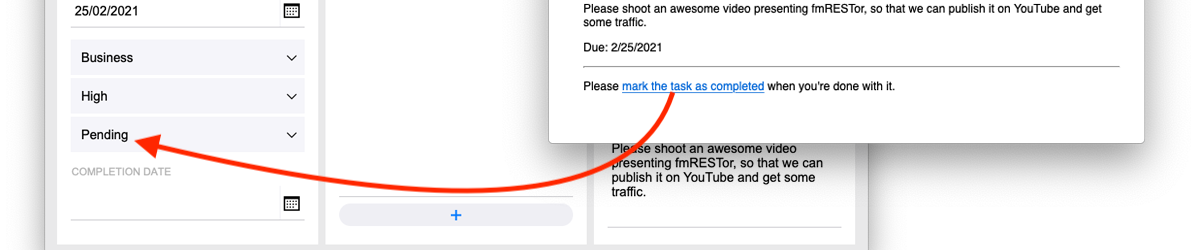
We have recently released fmRESTor 19 along with a brief 8-minute step-by-step video on how you can use fmRESTor to add a webhook to your own FileMaker database.   For the case you have not heard the term yet, webhook is usually defined as a “user-defined HTTP callback”. In plain English, it’s a web URL you can access and pass data to in order to perform some action in the target application. In the simplest form it’s just a link you can click and that alone performs the action.
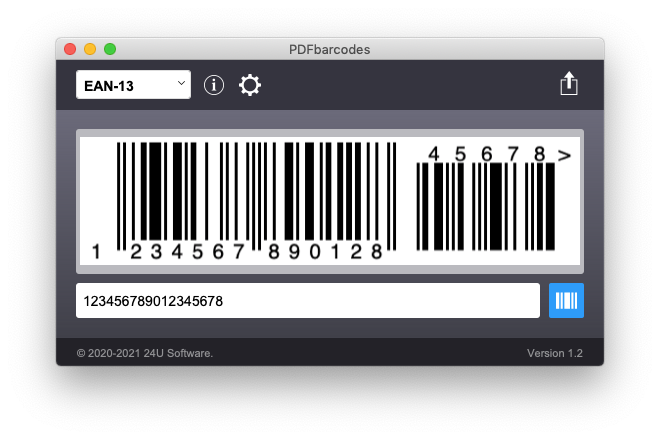
Have you ever dreamed of being able to generate high quality scalable barcodes in FileMaker solely using calculations, with no plug-ins, fast enough, in a way compatible with server-side scripts, FileMaker Go and FileMaker WebDirect, and completely free of charge? Your dream has just come true... There are various solutions for barcodes already available, from special barcode fonts, through Brian Dunning’s custom functions using rotated underscore as a symbol primitive, various web se
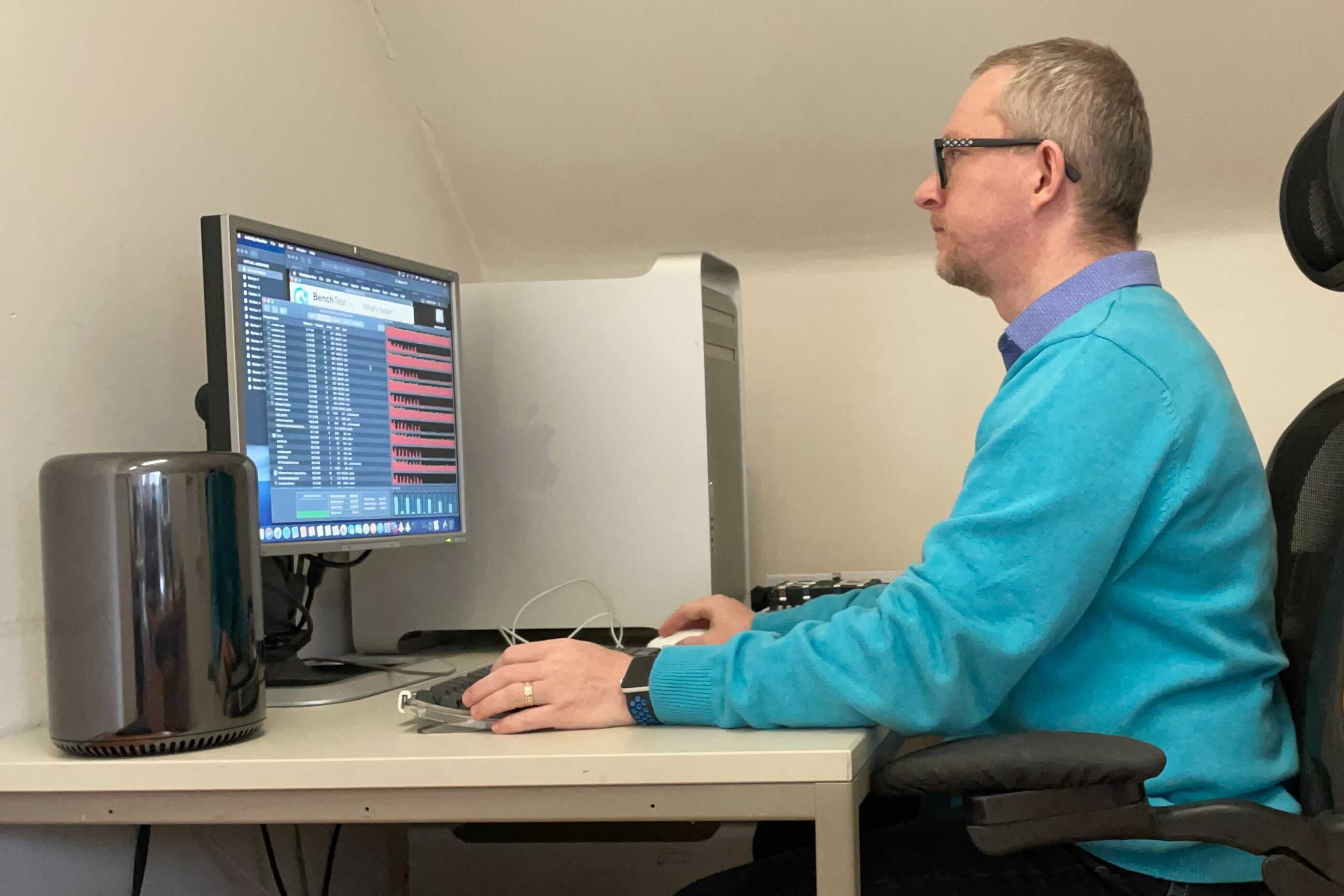
This is a fresh story of me spending hours trying to fix a technical issue and accidentally revealing a gold nugget. A few days ago one of my nightly server-side scripts stopped working without any apparent reason. But when I tried to run the script in FileMaker Pro it worked just fine. I really needed a way to debug the script on the server. Read more here

Important Information

By using this site, you agree to our Terms of Use.

Configure browser push notifications

Chrome (Android)
  1. Tap the lock icon next to the address bar.
  2. Tap Permissions → Notifications.
  3. Adjust your preference.
Chrome (Desktop)
  1. Click the padlock icon in the address bar.
  2. Select Site settings.
  3. Find Notifications and adjust your preference.