Jump to content
View in the app

A better way to browse. Learn more.

FMForums.com

A full-screen app on your home screen with push notifications, badges and more.

To install this app on iOS and iPadOS
  1. Tap the Share icon in Safari
  2. Scroll the menu and tap Add to Home Screen.
  3. Tap Add in the top-right corner.
To install this app on Android
  1. Tap the 3-dot menu (⋮) in the top-right corner of the browser.
  2. Tap Add to Home screen or Install app.
  3. Confirm by tapping Install.
  • Entries

    20
  • Comments

    2
  • Views

    28,023

About this blog

Excerpts from my articles published on the 24U's News page which I find worth sharing with the FMForums community

Entries in this blog

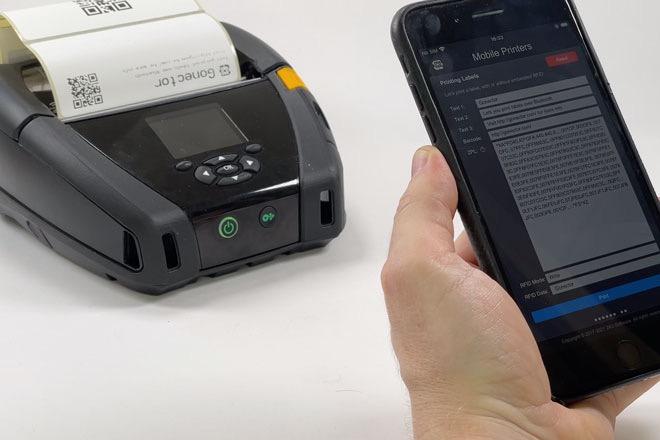
We have made our mobile hardware integration plug-in able to print labels on the Zebra ZQ630 RFID and compatible label printers, including reading and writing UHF RFID tags embedded in the labels. Gonector print labels directly via Bluetooth using the Zebra Programming Language, known as ZPL, so you don’t have to rely on wi-fi or AirPrint. Printing labels with Gonector is fast, reliable, and your scripts can have 100% control on what’s printed and where. Read more and see how easily you can
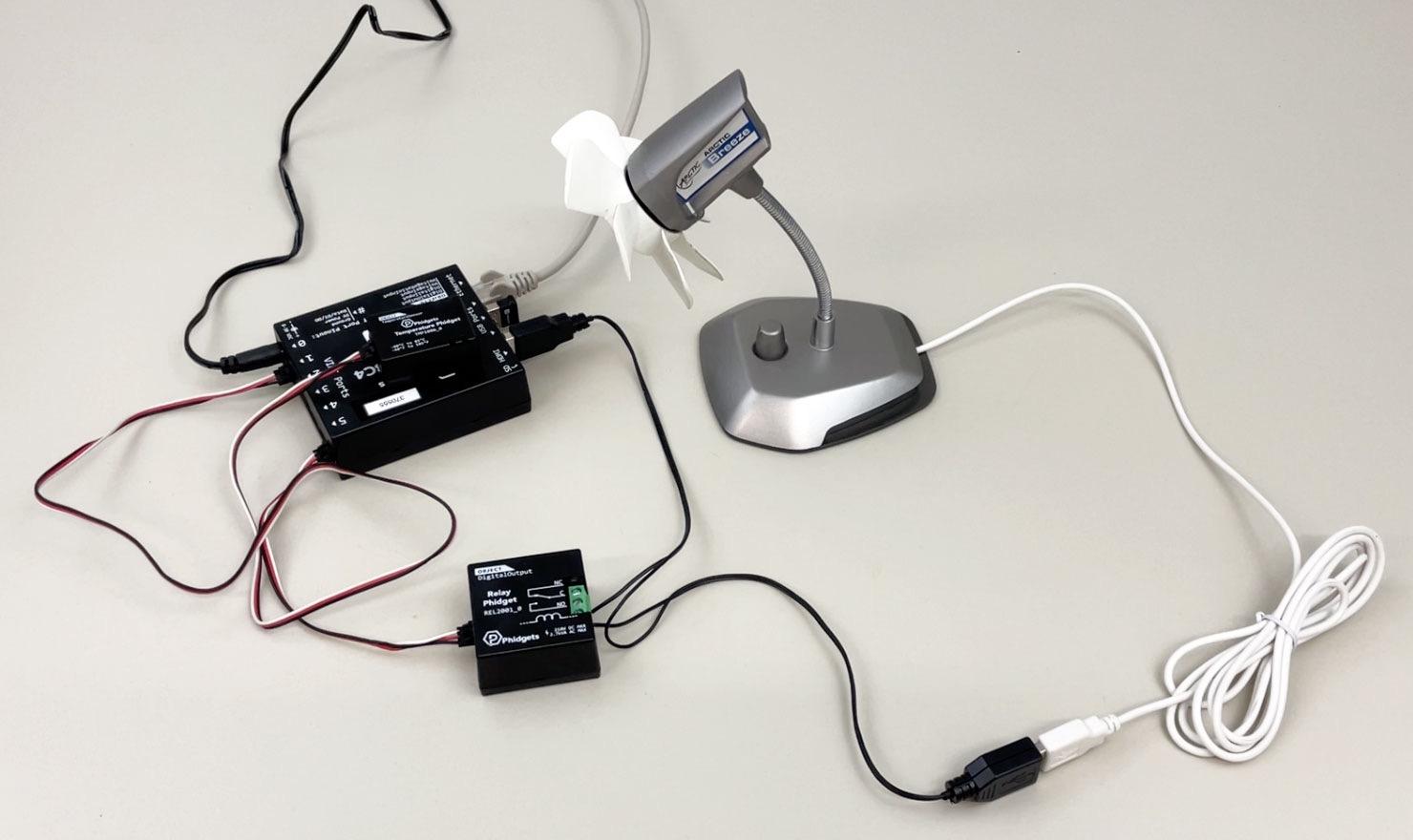
Bridge for Phidgets 4 adds support not only for 13 new VINT sensors, but also for FileMaker Server. That means you can now use this plug-in to automate monitoring of your servers rack temperature, tracking access using RFIDtags, unlocking doors, and anything else you can imagine, all that 24 hours a day without having to leave a dedicated FileMaker Pro client open all the time. See how easily you can use it to monitor your server temperature and automatically switch ventilation on and off as nee
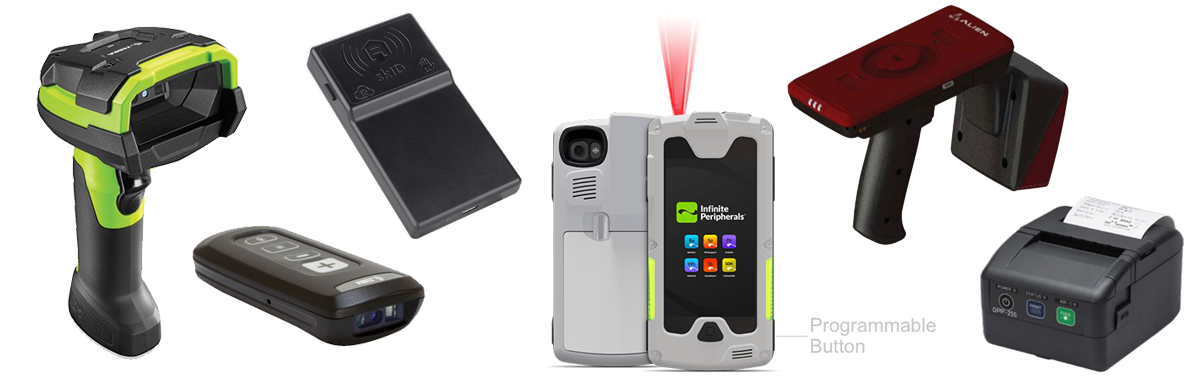
Gonector allows custom FileMaker apps for iPhone or iPad to seamlessly integrate directly with various mobile devices such as digital scales, RFID readers and mobile printers. Today we are happy to announce version 2.0 which doubles the number of supported devices.     The plug-in has been out for almost three years now and enabled some great apps to replace manual work with modern technologies, such as RFID and digital scales, without compromising the ease of use and develop

Important Information

By using this site, you agree to our Terms of Use.

Configure browser push notifications

Chrome (Android)
  1. Tap the lock icon next to the address bar.
  2. Tap Permissions → Notifications.
  3. Adjust your preference.
Chrome (Desktop)
  1. Click the padlock icon in the address bar.
  2. Select Site settings.
  3. Find Notifications and adjust your preference.