




Adding Webhooks to FileMaker is Easy with fmRESTor 19

By HOnza in Examples & Tutorials
· 1,226 views
We have recently released fmRESTor 19 along with a brief 8-minute step-by-step video on how you can use fmRESTor to add a webhook to your own FileMaker database.

For the case you have not heard the term yet, webhook is usually defined as a “user-defined HTTP callback”. In plain English, it’s a web URL you can access and pass data to in order to perform some action in the target application. In the simplest form it’s just a link you can click and that alone performs the action.
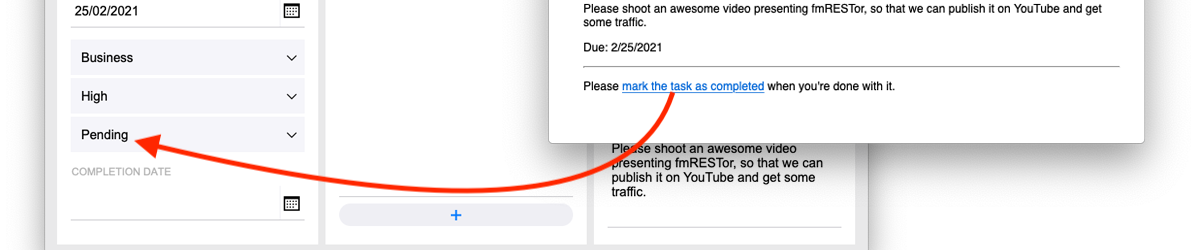
As an example, I took the built-in FileMaker starter solution for task management, and slightly modified it to send an e-mail when I assign someone to a task. Now whenever I assign someone to a task, that person receives a nicely formatted e-mail message with the task details, due date, and a link to click to change the task status to “Completed”.
Click here to read more details, watch the video and download the sample files
Edited by HOnza
Recommended Comments