




5 Common FileMaker & QuickBooks Integration Strategies

By PCIPal
· 197 views
Plan Before You Build
Connecting FileMaker with QuickBooks can reduce duplicate entry, improve access to accounting information, and give your team better visibility into the information they need to do their jobs.
Before writing scripts or exchanging data, it is worth taking time to decide what information should move between systems and which application should manage it.
The most effective integrations give each application a clear role. FileMaker manages customer-facing and operational processes, while QuickBooks remains responsible for accounting, payments, and financial reporting. Information is exchanged where it provides value, allowing both systems to work together without unnecessary duplication.
Start with Two Decisions
Nearly every successful FileMaker and QuickBooks integration begins by answering two questions:
- Which direction should the information move?
- Which application should be the authority for that information?
Once those decisions are made, the overall integration strategy often becomes much clearer.
Strategy 1: Create Customers in QuickBooks
For many organizations, creating customers in QuickBooks is the first integration they build. When a customer is added in FileMaker, the record is sent to QuickBooks and the QuickBooks ID is stored in FileMaker for future updates.
This approach establishes the connection between the two systems and introduces the concepts used throughout larger integrations. While most organizations eventually expand beyond this strategy, it provides an excellent starting point for learning how FileMaker and QuickBooks work together.
Strategy 2: Retrieve Accounting Information
Not every employee needs access to QuickBooks, but many depend on accounting information to better serve customers.
For example, when a customer calls with a new request, a salesperson or customer service representative may want to check outstanding balances or review recent invoices before scheduling additional work. Rather than asking the accounting team or opening QuickBooks, FileMaker can retrieve this information directly when it is needed.
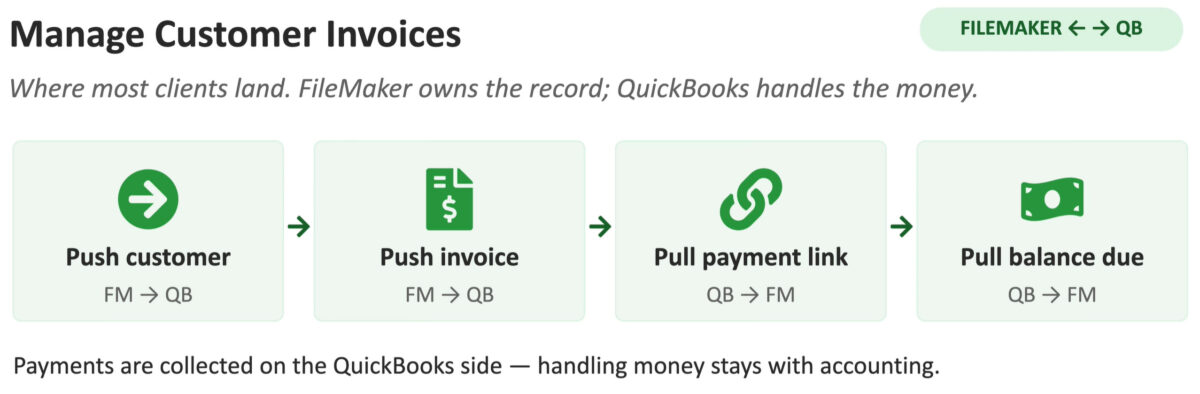
Strategy 3: Manage Customer Invoices
This is the strategy we recommend most often because it allows each application to focus on what it does best.
FileMaker manages operational activities such as customer records, estimates, work orders, scheduling, and invoice preparation. Completed invoices are pushed into QuickBooks, where accounting manages payments, financial reporting, bank reconciliation, and other financial processes.
Information such as payment status, customer balances, invoice PDFs, and payment links can then be retrieved from QuickBooks as needed. This gives your entire team access to important billing information while allowing accounting to remain responsible for financial data.
For many organizations, this provides the right balance between operational flexibility and accounting control.
Strategy 4: Business Intelligence
Once accounting information has been brought into FileMaker, it can be combined with operational data to create reports and dashboards that support better business decisions.
Examples include:
- Customer aging reports
- Payment history
- Open invoice summaries
- Historical sales trends
- Executive dashboards
You can also leverage AI to identify patterns, summarize historical activity, and uncover insights that would be difficult to find by reviewing individual transactions.
Strategy 5: Two-Way Synchronization
Some organizations require customers, invoices, or other records to be created in both FileMaker and QuickBooks.
While this approach offers the greatest flexibility, it also requires significantly more planning and development. Matching records, resolving conflicts, and determining which application owns each field adds complexity that many organizations do not need.
Before choosing two-way synchronization, consider whether a simpler integration strategy can provide the same business value. Reach for it only when the other scenarios are not enough.
Implementation Considerations
Once you’ve selected an integration strategy, there are several planning decisions that can make development smoother and help avoid unnecessary rework later in the project.
Build Your Foundation
cords. Before pushing invoices into QuickBooks, your FileMaker solution should already contain the supporting QuickBooks information needed to create valid transactions.
This often includes:
- Customers
- Items and products
- Tax codes
- Sales representatives
- Classes
- Chart of Accounts
If QuickBooks is already in use, a one-time import of these records into FileMaker provides a solid starting point for future integrations.
Decide Which System Owns the Data
One of the most important planning decisions is determining where each type of information should be managed.
A common approach is:
Use FileMaker for:
- Customer management
- Contacts
- Work orders
- Scheduling
- Estimates
- Operational processes
Use QuickBooks for:
- Payments
- Accounting records
- Bank reconciliation
- Financial reporting
- Tax information
Allowing each application to manage the information it was designed for often results in a simpler solution that is easier to maintain over time.
Choosing the Right Integration Tools
After planning out the integration, the next step is implementation.
FM Books Connectorconnects FileMaker with QuickBooks Desktop and provides ready-to-use scripting examples, unlocked demo files, and free Productive Computing University training to help accelerate development.
FM Books Connector Online provides similar capabilities for QuickBooks Online while also supporting both client-side and server-side deployments. Server-side integrations make it possible to automate scheduled processes, perform batch operations, centralize authentication, and support FileMaker WebDirect and FileMaker Go without requiring a desktop user to initiate the integration.
Whether you’re integrating QuickBooks Desktop or QuickBooks Online, both products provide the tools and examples needed to build reliable integrations while allowing you to focus on the business processes that matter most.
Selecting the Best Strategy
Every organization has different requirements, but the same planning principles apply to nearly every successful FileMaker and QuickBooks integration.
- Decide which application owns each type of data.
- Exchange only the information that provides value to your team.
- Let FileMaker manage operational processes while QuickBooks manages accounting whenever practical.
- Choose an integration architecture that fits the way your users work.
Starting with a clear strategy makes development more straightforward and helps create an integration that is easier to maintain as your organization grows.
Other products and services Productive Computing, Inc. offers:
- What can PCI do for you? – overview of our services
- Health Assessment – a comprehensive report of your FileMaker system
- Consulting and Development – services billed by the hour
- Maintenance and Support – services billed monthly
- Packaged Services – Security Audit, SSL or Server Installation
- Plug-ins – tools to integrate with QuickBooks, Outlook, Google, and more
- Solutions – free customizable and scalable CRM template
- Claris and FileMaker Licensing – discounts on new seats and renewals
- FileMaker and QuickBooks Hosting – host your files in the cloud
- Productive Computing University – online beginner to advanced training courses
- Certification Programs

The post 5 Common FileMaker & QuickBooks Integration Strategies appeared first on Productive Computing, Inc..
Recommended Comments