




New SQLexplorer

· 1,178 views
Jason has just completed a major new version of SQLexplorer that makes it easier for beginners and pros alike to write better queries.
If you haven’t used SQLexplorer before, it writes FileMaker SQL queries for you as you fill out a simple form using FileMaker terms your familiar with (sorts, relationships, etc). You can then test your query right in SQLexplorer before copying and pasting it into your solution. Queries are clearly commented and abstracted to survive field renaming.
I can tell you this has sped up our own work considerably as we now don’t have to think hard (and type correctly) every time we write a query.
If you’ve been using SQLexplorer for a while, checkout the screenshots to see what’s new.
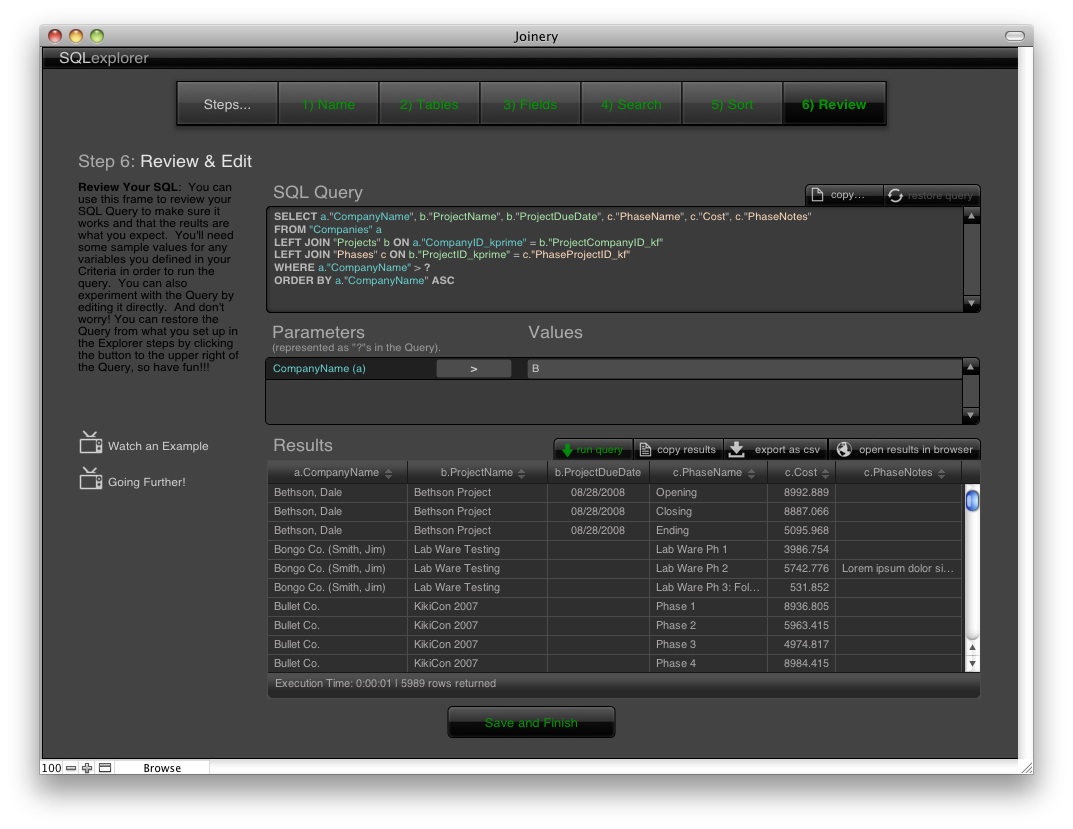
Review query results in new HTML5 powered portals with column resizing and sorting.
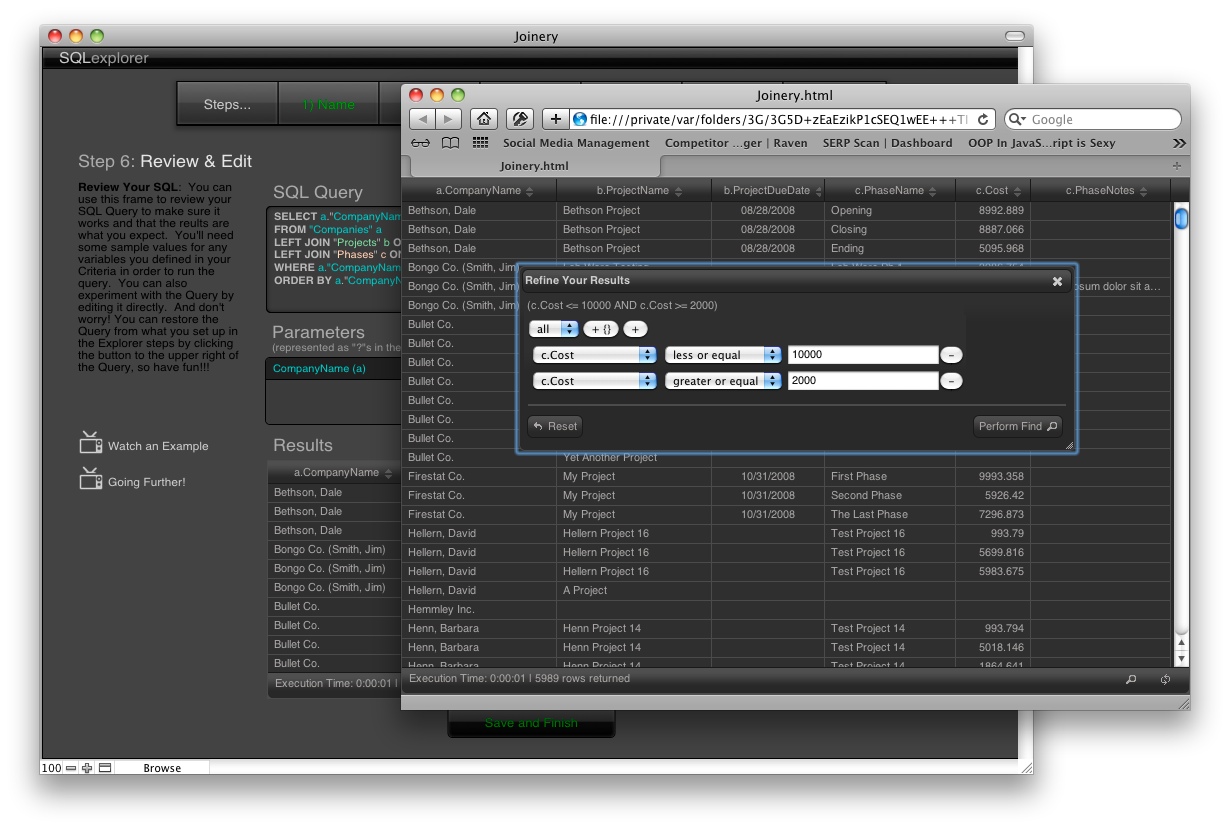
Refine your results then paste refined criteria back into your queries.
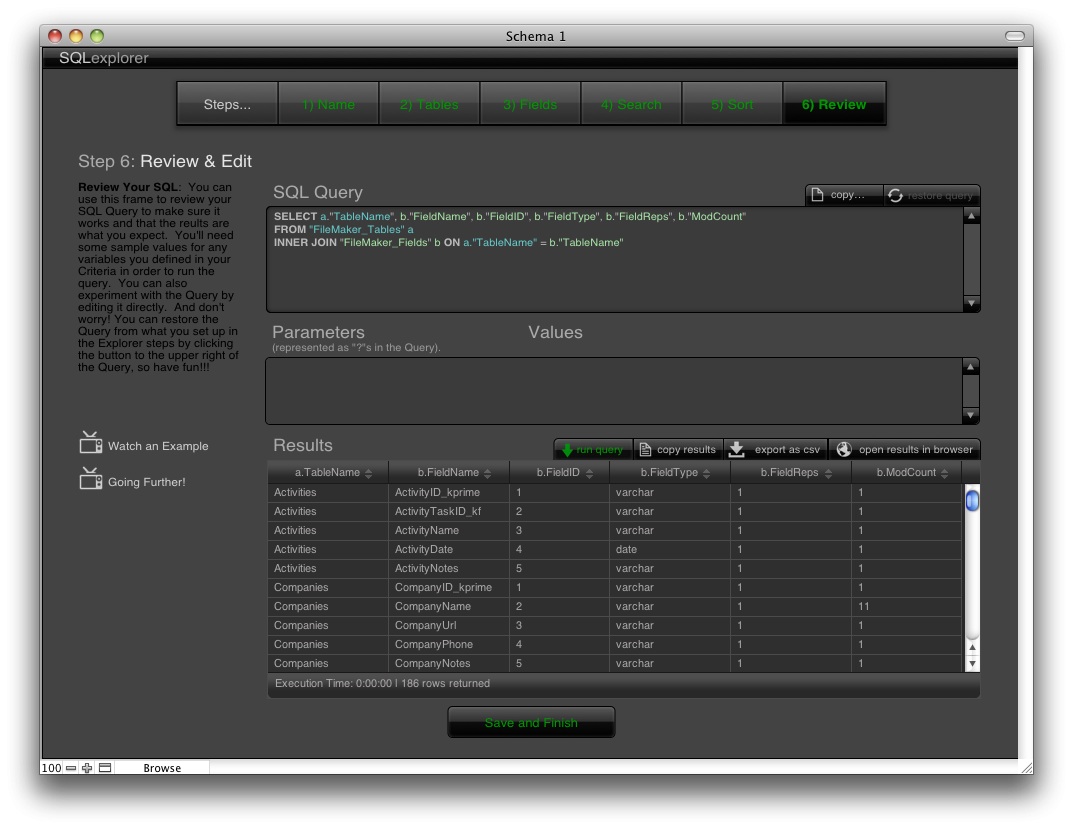
Run queries against FileMaker’s built-in schema tables.

Optionally export column headers that respect translated field names using “as”.
SQLexplorer is still free and completely unlocked. Learn more and download the new version here: get SQLexplorer. Jason has also recorded a great video of the new features in action.
The post New SQLexplorer appeared first on SeedCode.
Source
Recommended Comments