

Jump to content
View in the app

A better way to browse. Learn more.

FMForums.com

A full-screen app on your home screen with push notifications, badges and more.

To install this app on iOS and iPadOS
  1. Tap the Share icon in Safari
  2. Scroll the menu and tap Add to Home Screen.
  3. Tap Add in the top-right corner.
To install this app on Android
  1. Tap the 3-dot menu (⋮) in the top-right corner of the browser.
  2. Tap Add to Home screen or Install app.
  3. Confirm by tapping Install.

What’s next for GoZync: Worx

(0 reviews)

This weekend, Todd Geist and I took the train up from LA for a 33 hour code sprint and built the start of Worx, the next file for GoZync.

This is a great way to work and we got a ton done.

todd.jpg?w=150&h=112

Todd on the Coast Starlight

Worx is a work orders system for iPad: users in the office assign orders to technicians and those techs “zync” the orders down to their iPads before completing the orders. Orders come down with contact info, maps, and a serious items database capable of browsing and selecting from tens of thousands of items.

Here are some screen shots from the iPad side…

workscontacts.png?w=300&h=233

Contact management & maps in Worx on iPad

worksitems.png?w=300&h=233

Item selector in Worx: please forgive the testing data

worksitemsgrid.png?w=300&h=233

Selecting items: grid view

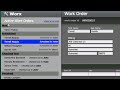
…and a short video of the office side showing the virtual list Todd created for our side bar. Nice stuff.
2.jpg

Worx will be available as a ready-to-go solution for

GoZync that you can tie to your own hosted file or use on its own. More soon.

604 604 604 604 604 604 604 b.gif?host=seedcodenext.wordpress.com&bl

Source

0 Comments

Recommended Comments

There are no comments to display.

Important Information

By using this site, you agree to our Terms of Use.

Account

Navigation

Search

Configure browser push notifications

Chrome (Android)
  1. Tap the lock icon next to the address bar.
  2. Tap Permissions → Notifications.
  3. Adjust your preference.
Chrome (Desktop)
  1. Click the padlock icon in the address bar.
  2. Select Site settings.
  3. Find Notifications and adjust your preference.